

Cardio, nutrition and body tracking
Strength is the core of Durata, but progress doesn't only live in the gym. The app also tracks your cardio, your daily nutrition, and your body itself: weight, measurements and photos, so the work and the results sit in one place.
None of it asks for busywork: cardio flows in from your workouts and your phone's health platform, nutrition syncs as one record per day, and photos back themselves up. Find Cardio, Nutrition, Body and Gallery under the You tab.
Last reviewed 2026-09-28 · matches app v1.0.1.98
Cardio: tracked, not typed
Open You > Cardio and every session is already there: cardio exercises logged inside a workout appear automatically, and runs, rides and swims from other apps sync in through Apple Health (on Apple devices) or Health Connect (on Android), aggregated alongside what you logged in the app. There's deliberately no separate cardio diary to maintain.
A ride you logged in a workout counts once here, on the panel, on the dashboard card and against a cardio goal, even though the app holds a record of it in two places. Edit the set in the workout and this panel follows: the minutes, the distance and the charts all read the corrected figure.
For your chosen time range you get six stats, namely sessions, total distance, total minutes, best running pace, average heart rate and estimated calories, plus trend charts for distance, pace (running only), heart rate, heart-rate zones and duration, and a By Activity list with per-activity records. The stats and the Charts and History tabs follow the funnel filter. The Insights tab does not: each card there takes its own window and names it in its top-right corner, 7 days for Your Week's Work, 28 days for Cardio in Your Week and 16 weeks for Same Effort, More Speed, so changing the range never quietly changes what a card is about.
The trend charts read as trends, not just history. Duration carries a dashed rule at your average session, so you can see at a glance which sessions were the big ones. Distance does too, as long as everything in range is the same activity; log more than one kind of cardio in the window and the dashed average steps aside for colour instead: each bar reads as its own activity, and the legend gives each one its own average rather than averaging a run against a ride. Pace and heart rate carry a running average of your last seven sessions, drawn over the raw line, so the noise stays visible while the direction is the part you actually read. A small caret marks your fastest run.
Tap a session in the list to open it: distance, duration, heart rate, elevation and notes are all correctable there, alongside the Counted switch for that one session. A session logged inside a workout opens the workout instead, because that's where it lives. Enter a heart rate and Durata shows your training zone (Z1-Z5) and estimates calories from it.
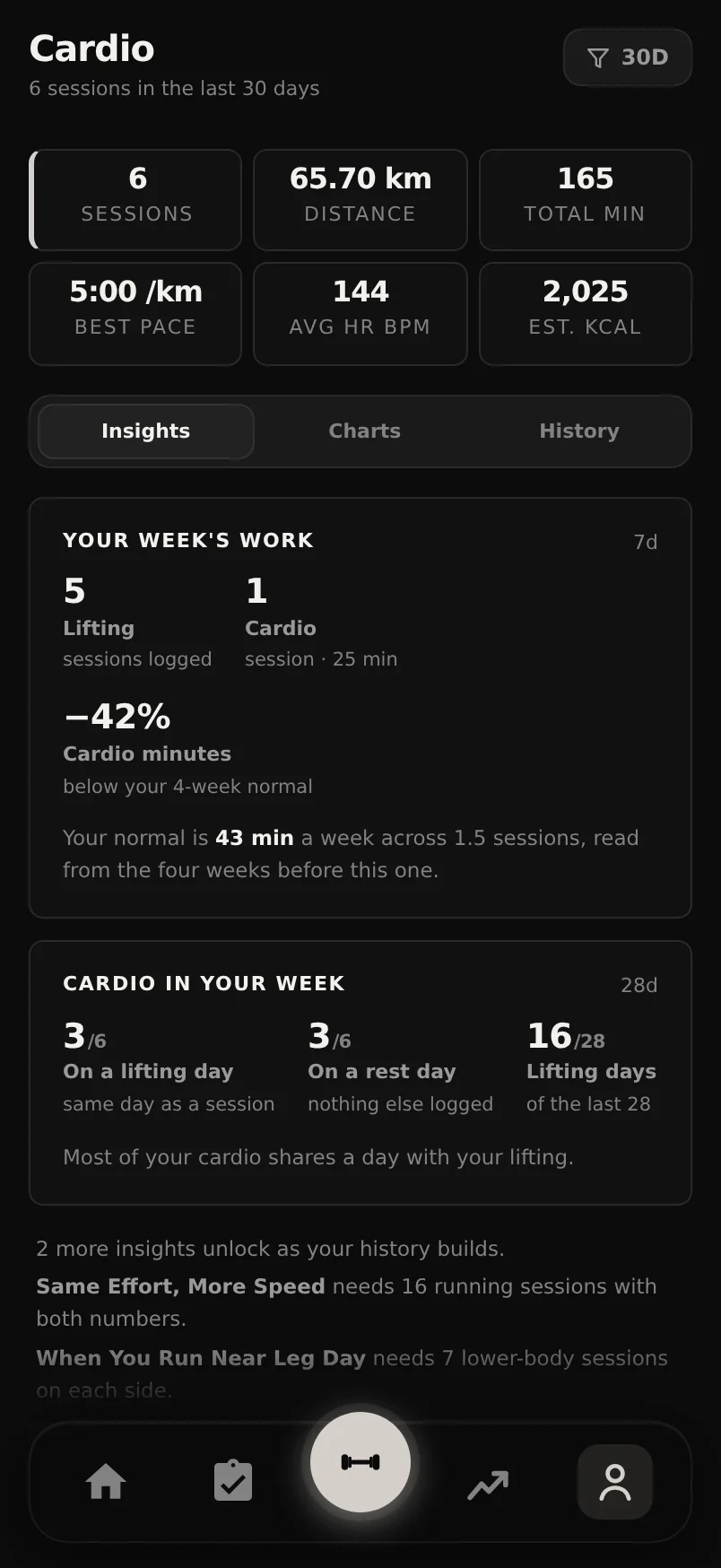
Tap any row in the By Activity list to open its records: longest distance and best pace where the sessions carry a distance, and longest session, total time and last done for everything, including an air bike or a rower you logged as a set in a workout.
The funnel button in the header switches the whole panel between 7-day, 30-day, 90-day, 1-year and all-time views, and it remembers your choice.
Every row in By Activity carries its own Counted button, which stops that whole activity counting toward your totals, charts and goals until you tap it again. To drop just one session, open it from the session list and flip the Counted switch inside.
Every trend card carries a small expand icon in its header. Tap it and that chart fills the screen, drawn from more of your history than the card had room for, with your average, your best and your worst along the bottom. Turn the phone sideways and it redraws wider.
Running the timer in a workout
Add any cardio exercise to a workout and its set rows swap weight and reps for distance, duration and an editable REST cell. Tap START and the timer runs the set: a planned duration counts down with a progress ring and carries a Pause button, while no duration at all means a count-up stopwatch.
Either way the big button is Finish, and it logs the time you actually trained rather than the time you planned. Stop a planned 30:00 ride at 20:00 and 20:00 is what lands in the duration cell, with the set ticked off and its rest period started. Next to Finish sits Cancel, which is the separate route for abandoning a set you don't want logged at all.
When every set is done, the button turns into LOG ANOTHER: one tap adds a fresh round and starts it immediately.
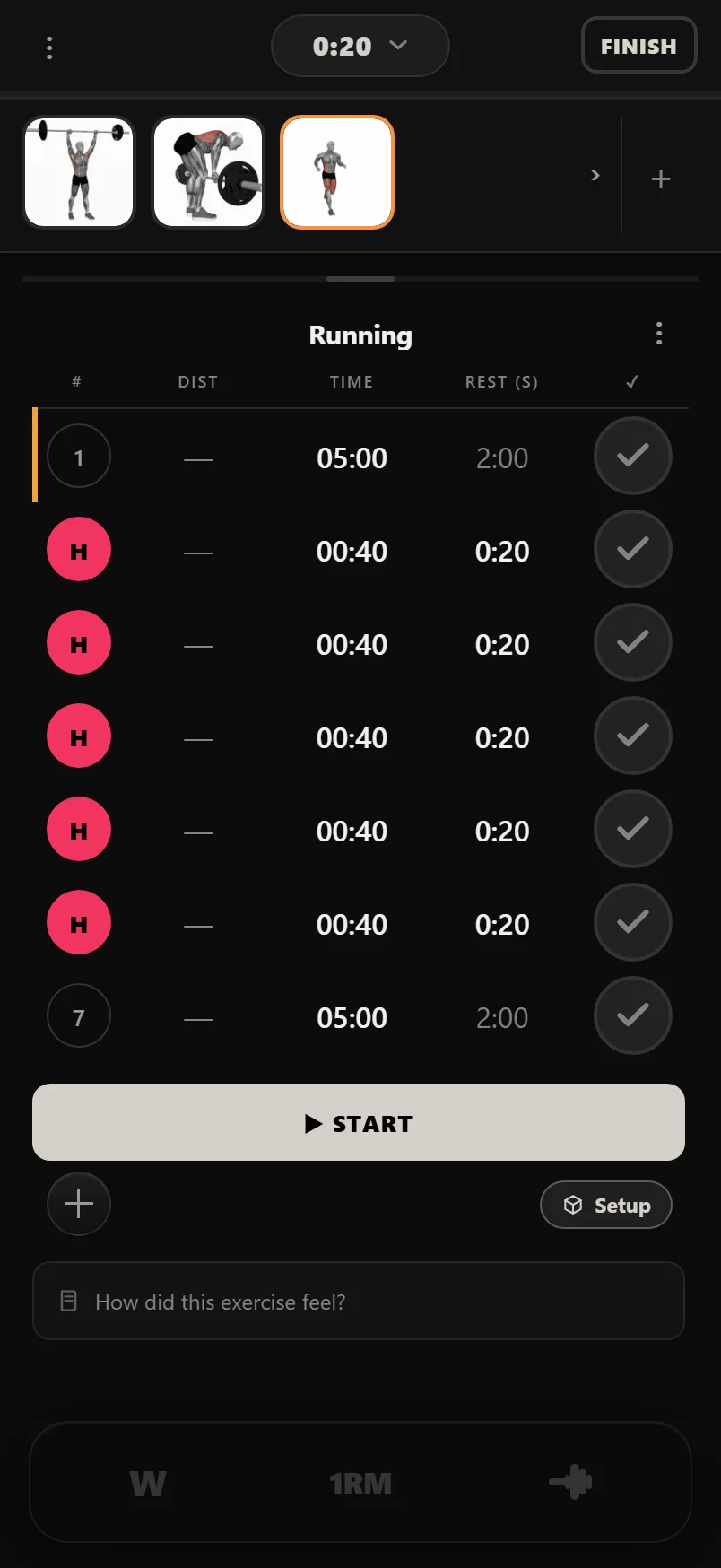
Type plain seconds into the REST cell and it formats itself, so 90 becomes 1:30. Set it to 0 and the timer skips rest entirely, chaining straight into the next round.
You can type the duration cell by hand instead of running the timer. It reads as digits and groups itself from the right, so 2000 becomes 20:00 and 130 becomes 1:30 — type the minutes and seconds straight through without the colon.
Tap a cardio set's number badge to choose Steady or HIIT for that set; swipe the row left to delete it.
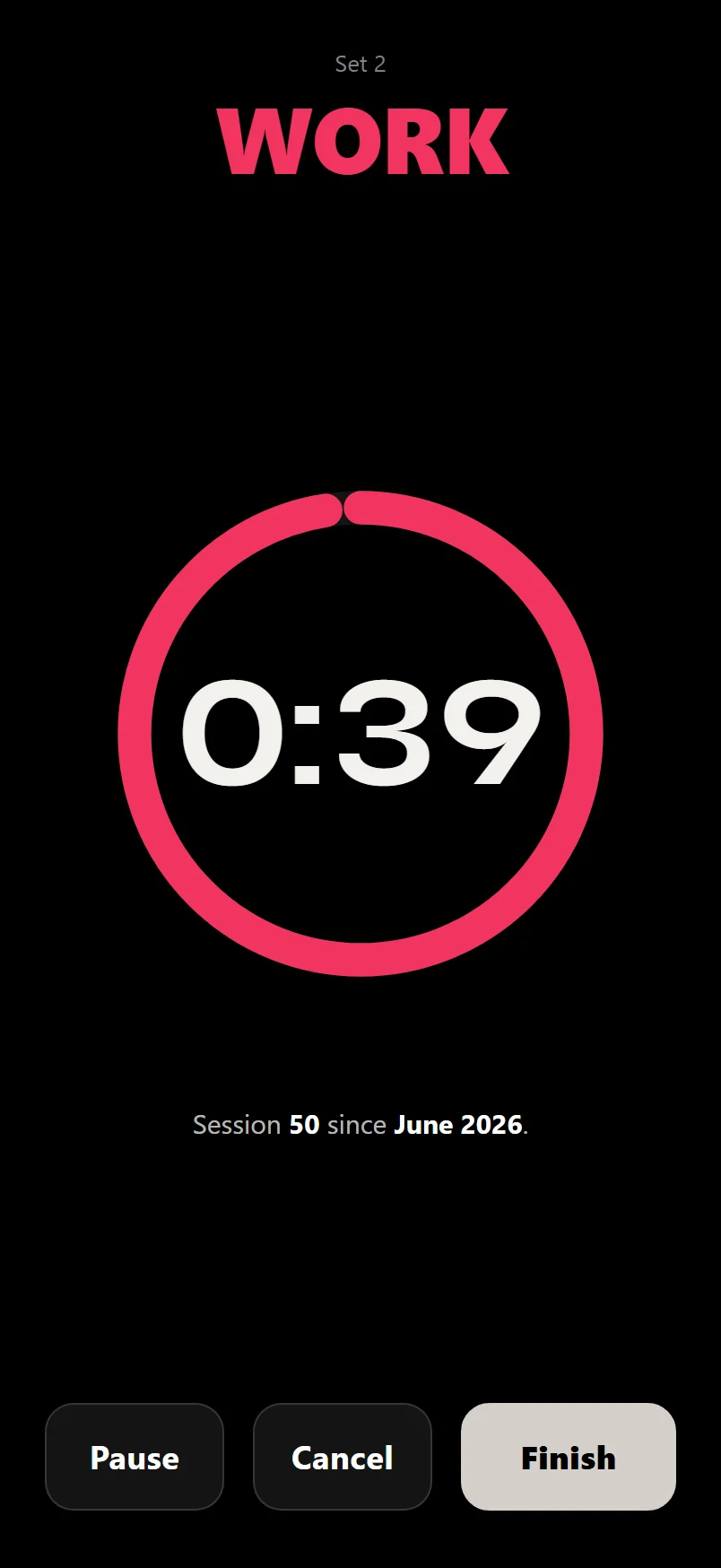
During the three-second GET READY countdown the big button reads Cancel, because nothing has been trained yet. It becomes Finish the moment the work period starts.
HIIT that runs itself
Mark sets as HIIT and the logger runs them as real intervals: each set's duration is the work period, its rest is the recovery, and sets auto-chain from work to rest to work, with the set number and phase (WORK or REST) front and centre. HIIT work gets the urgent red ring; steady efforts stay calm white.
HIIT blocks in Durata's built-in programs are automatically bracketed by a 5-minute easy warm-up and cool-down. The warm-up chains straight into round one, and the moment your last round ends the cool-down starts on its own, so you're never sent cold into all-out intervals or left standing when they finish.
Nutrition: one record per day
Nutrition is built around syncing rather than typing. Connect Apple Health or Health Connect and daily calories and macros flow in from the nutrition app you already use, merged into exactly one record per day, so re-syncing never creates duplicates.
Today's figures keep up with you. Calories and water are a running total that climbs all day, so Durata re-reads the current day every time you open the app or come back to it, and opening the Nutrition panel asks for a fresh read of its own. The last couple of days are re-read too, because a food app often hands last night's dinner to your health store the following morning. Log lunch in your food app, switch over, and the number has already moved. Nothing is rewritten when nothing has changed.
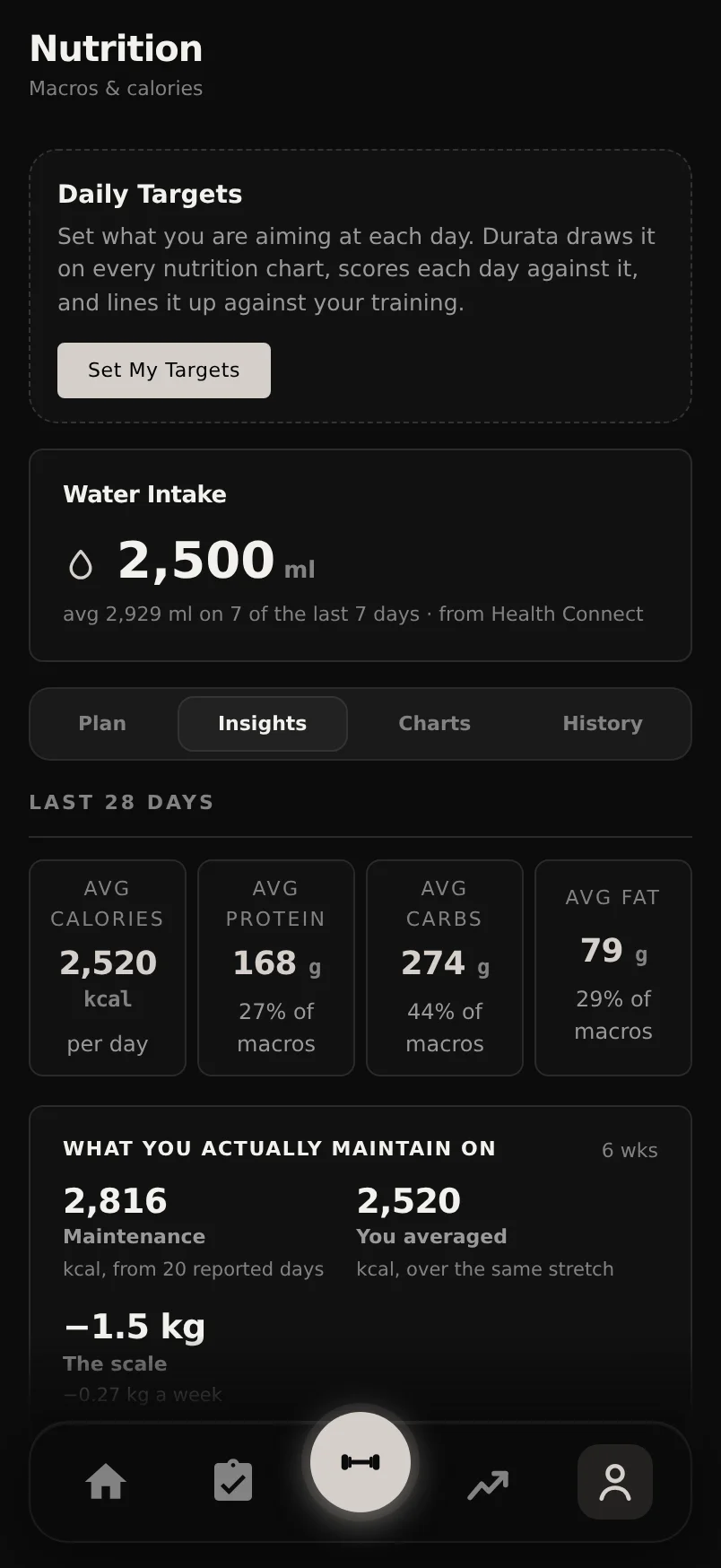
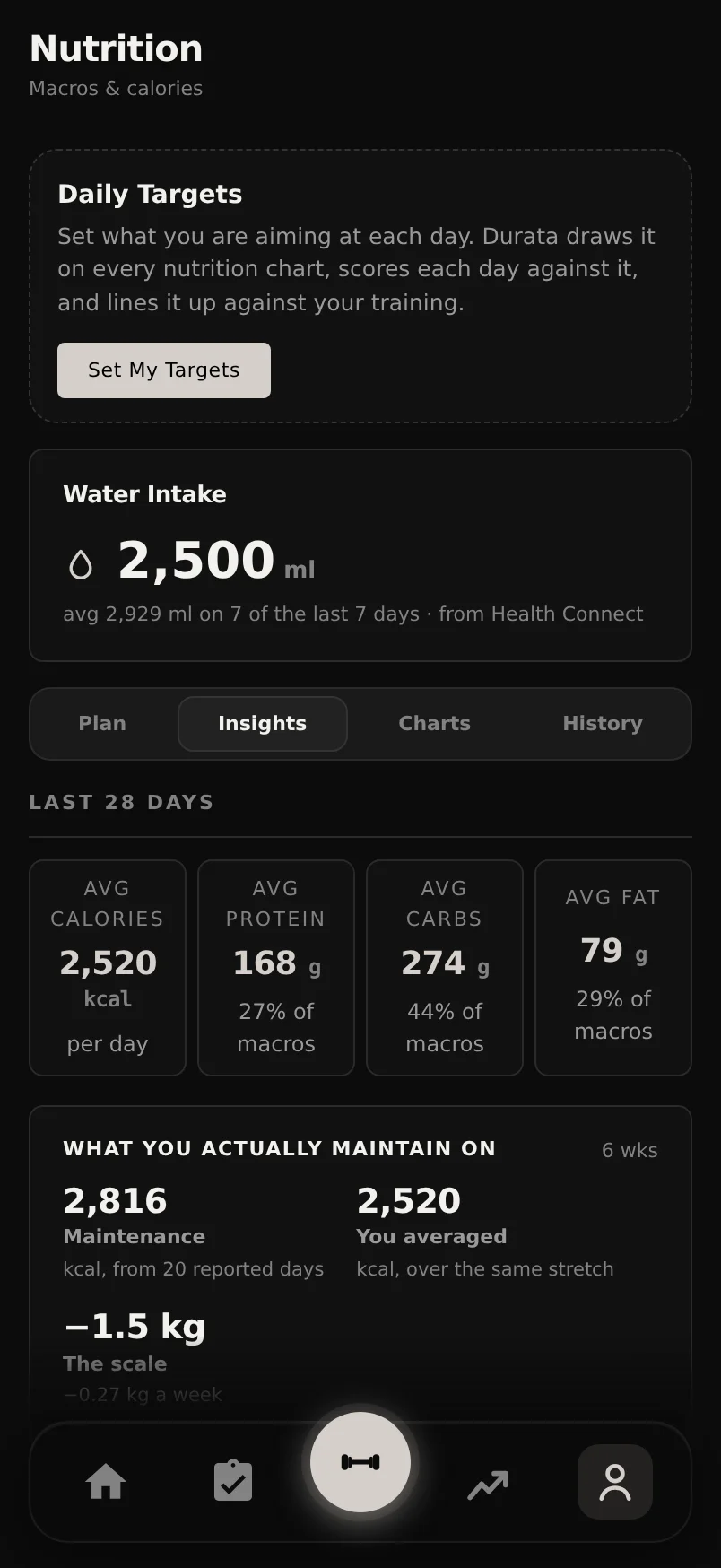
You get average calories, protein, carbs and fat, a daily calories chart, a Macro Split bar that reads protein, carbs and fat as shares of your calories, with grams a day beside each and, once all three macro targets are set, the share your targets planned, and protein, carbs and fat trend lines. Edit any day with the pencil button in Log History, and the day stays a single record.
Nutrition targets turn that synced record into a plan you can be judged against. Set calorie, macro and water targets for a stretch of training and Durata scores each day as it lands. A day is either a Training day — Weights, meaning you lifted, or Any Session, meaning weights or cardio either counts, your choice when you set the targets up — or a Rest day, and each carries its own numbers. Days ahead aren't a guess: the forecast follows your training plan's own weekly schedule, so a plan that only lifts Monday, Wednesday and Friday in week 3 calls Tuesday a Rest day rather than assuming week 1's pattern repeats; a rotation plan, which has no fixed weekdays, averages across the rotation instead. Nothing running yet? The Today card's Set My Targets button starts one. Once a phase is running, New Targets — the round + in the header — starts the next from any tab, and Log History grows a Target column showing that day's number and which profile it was judged against.
Nutrition has four tabs: Plan, Insights, Charts and History. The Plan tab holds the running phase — its seven days, the target sets, and the phases behind it. The funnel filter runs Charts and History; Insights and Plan each step out of it, because nothing on either tab follows it: the row of averages at the top of Insights is titled Last 28 Days and covers the 28 days ending yesterday, and every insight card names its own window in its corner.
Daily intake is noisy by nature, so the charts do the smoothing for you: the calories chart draws a dashed rule at your average for the range, and each macro line carries a running average of your last seven logged days over the top of the daily values. Days you didn't log aren't counted as zero. They are absent, and the line closes the gap rather than dropping to the floor.
Water syncs the same way the food does and stays read-only: there's no glass to log by hand, log water wherever you already log it and Durata reads it. Without a water target the card is plain — today's figure, your seven-day average underneath, and a note of where it came from. Set a water target as part of your nutrition targets and the same card becomes a ring instead: today's total as a percentage of target, with the profile it's judged against underneath. Add the Water widget to Home and today's figure sits on your board too.
Editing a day's macros? Leave the calories field blank and Durata calculates it from protein, carbs and fat (4/4/9 kcal per gram) and fills it in for you.
The calories chart and each macro chart carry a small expand icon in the card header. Tap it to fill the screen with that chart, drawn from more of your history, with your average, lowest and highest along the bottom.
Weight, body fat and measurements
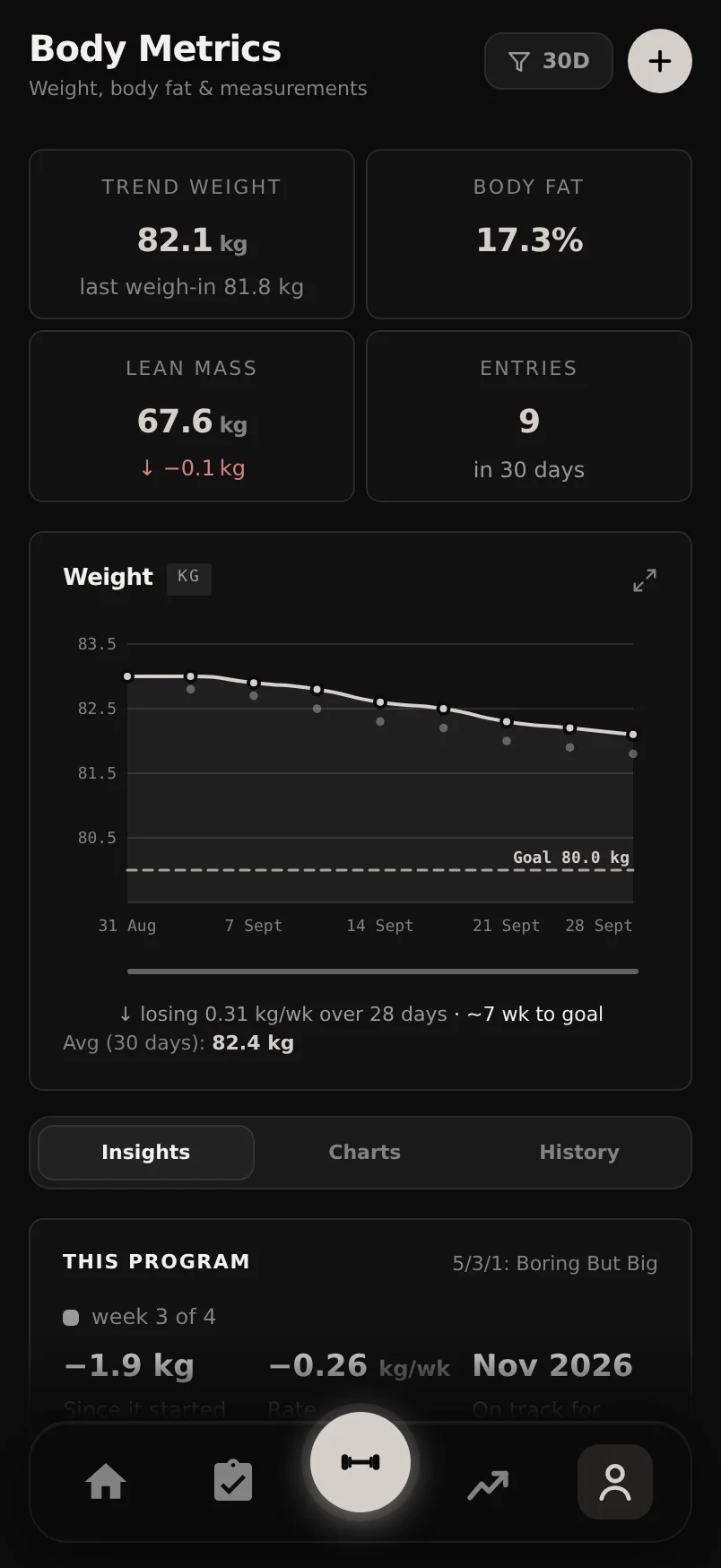
Body Metrics is the long-game page. Tap the + button to log today: weight (kg or lbs, following your unit setting), body fat percent, optional lean and bone mass, and ten tape measurements from neck to calves. The top row reads Trend Weight, the smoothed line through your weigh-ins with your last actual weigh-in printed under it, then Body Fat, Lean Mass and Entries, which counts however many readings fall in the range you're viewing — a plain total on the All filter, just that window's count otherwise. BMI sits in the stats list below.
Charts cover weight, body fat, lean mass, BMI trend and any single measurement you pick. Sleep and water sit alongside, and both sync from Apple Health or Health Connect, the same as your calories and macros. Sleep also gets its own dashboard card once data is flowing, and it only counts sleep as current within the last week, so stale data drops off rather than pretending you slept.
The weight chart draws every weigh-in as a small dot under the trend line, so the noise the trend is smoothing stays visible. Body has the same Insights, Charts and History tabs as Cardio and Nutrition. The weight chart and the Charts and History tabs follow the funnel filter, while each insight card names its own window in its corner, and the Current Phase card carries the phase's name there. Tap a row in History to open it for editing — a synced weigh-in and any measurements you typed for the same day share one row and one edit, not two.
Set a weight goal and the weight chart draws it as a reference line, with a readout underneath showing your rate of change and how long you're on track to reach it - or a note that you're trending away from it, so you notice before it drifts too far.
Tap Manage on the Measurements card to open one measurement's full history, where you can edit or delete any past value right in the list.
The Weight, Body Fat and Lean Mass cards each carry a small expand icon in their header. Tap it and that chart fills the screen, drawn from more of your history than the card had room for, with your latest value and total change along the bottom. Turn the phone sideways and it redraws wider.
Progress photos
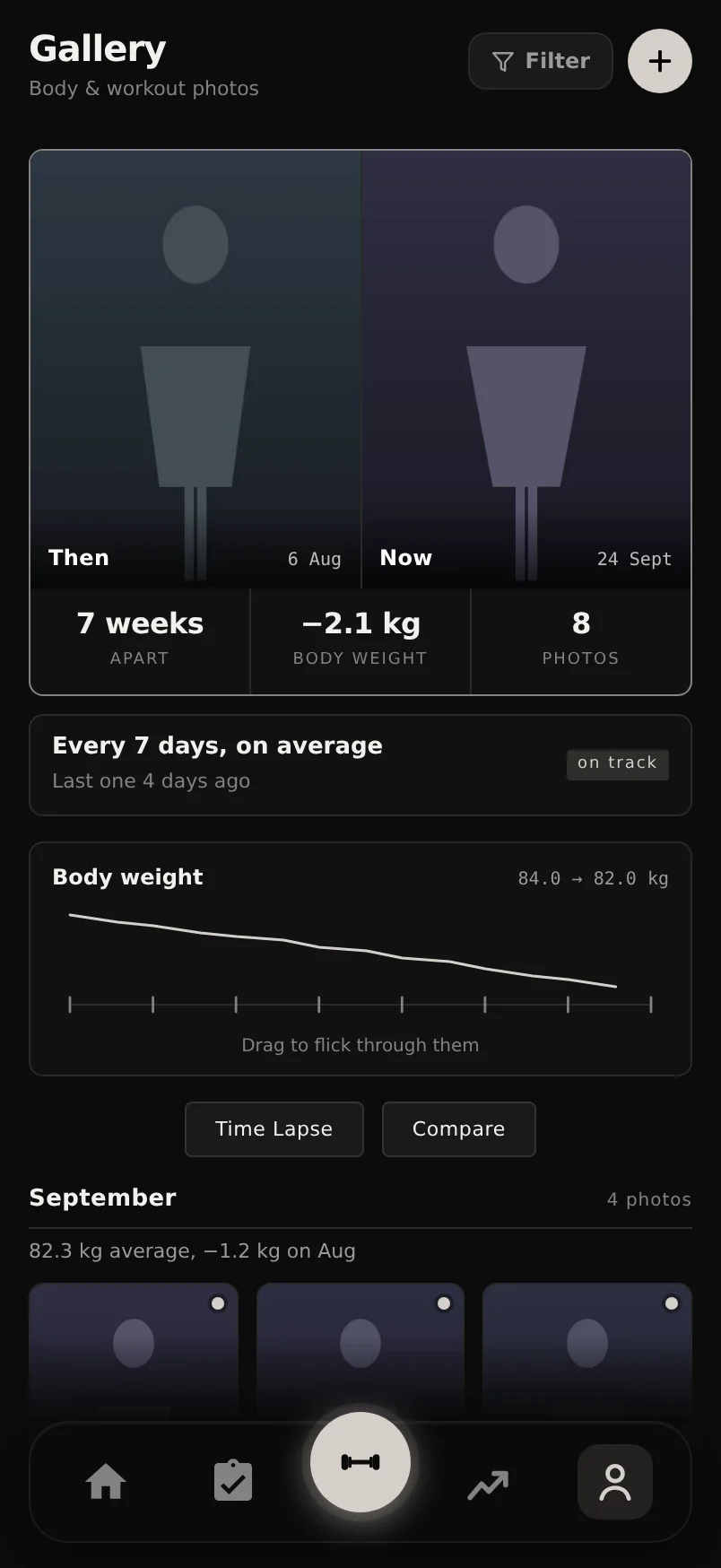
The Gallery opens on your own before and after. The card at the top pairs your first photo with your latest, labelled Then and Now, over a row reading how far apart the two are, what your body weight did across that stretch, and how many photos you have. Tap the card and that exact pair opens as a compare card, with no picking to do. With only one photo it shows that one and tells you what a second will turn on.
Under it, a line reads your own rhythm back to you: how often you actually take a photo, and when the last one was. It uses your typical gap rather than your average one, so a month away doesn't rewrite a weekly habit. Inside that usual interval it marks you on track. Well past it, it says how many days it has been and offers a Take One button straight to the camera.
Then a strip you can drag. It draws your body weight across the stretch your photos cover, and dragging along it brings up the photo under your finger with its date and the weight you logged nearest it, so a year of shots goes past in a second. When there aren't two weigh-ins inside that stretch there's no weight line to draw, and the strip names itself after what it does show: your photos, and how long they span. Dragging through them is free; exporting a time-lapse is the Pro part.
The grid below is grouped by month, each month headed with its name, how many photos are in it and, where you weighed in that month, your average weight and how it moved against the month before. A filter button in the header, the same funnel you'll know from Goals, separates body shots from post-workout photos, and once you've tagged any, front from side from back.
Tagging an angle is optional and takes one tap. Durata asks once, straight after you save a body photo, and takes no for an answer: wave it off three times and it stops asking for good. Filtering down to one angle scopes Compare and the time-lapse to that one track as well as the grid, and photos you never tagged keep working exactly as they always have. In the photo viewer the angle sits as a badge you can tap to set, change or clear.
A photo taken on a day something else happened carries a small dot in the grid, and opening it spells the day out: a program you started or finished, a lift that is still your best, a weigh-in that was your lightest or heaviest to date. Nothing is matched across a window, so a photo only ever claims what happened on its own day, and a day with nothing on it says nothing.
Tap a photo and it opens full screen as its own branded share card, with Share, Save and Delete right on it: Share sends the finished card, Save keeps the clean original photo, and Delete removes it everywhere. Swipe between photos, and toggle which numbers ride along. The full range of photo cards, the hero and ledger looks, and the side-by-side Compare are covered in the share-cards guide.
Tap + to add a photo: take a new one with your phone's camera or pick one from your library, using the same chooser you'll meet everywhere a photo can be added, including the post-workout photo. The Compare button puts any two photos side by side by default, oldest on the left, reading out the days between them and your weight change over that stretch. Switch its Card/Wipe strip to Wipe and the two share one frame instead, with a divider you drag across them and each side panning and zooming on its own.
Every photo is also saved to a Durata album in your device gallery, the Photos library on Apple devices and your device gallery on Android, so it backs up with your other photos. That album is how you get your photos back after a reinstall. On iPhone and iPad the gallery restores itself from it automatically, once, with no duplicates, and a Restore from device album button is there if you ever need it. On Android you bring them back yourself: tap Import photos from device on the empty gallery and pick the photos you want out of your phone's photo picker. Each one keeps its original date, and importing the same photo twice does not duplicate it.
With one photo the Gallery tells you what a second one unlocks, and with two what a third does. The line goes once you have three, because by then both buttons work.
Tap Compare and the button becomes a counter: pick two photos out of the grid and it fills in, then tap it again to open them together.
Turn photos into a time-lapse
With three or more photos, the Time Lapse button builds a crossfading, date-stamped, Durata-branded video of your transformation, framed at 4:5 portrait for social feeds. Drag the filmstrip trimmer's handles to pick the exact stretch you want; a live label shows the photos and weeks in range.
Download or Share exports a real video file. On devices that can't encode video, Durata falls back to a branded before/after image, so you always get something worth posting.
The time-lapse is part of Pro. Taking, keeping and comparing photos side by side stays free; on a free account the Time Lapse button carries a small PRO mark and opens the Pro sheet.
Tap the small preview to play the time-lapse full screen; tap again to come back to the trimmer.
In the Android app, the Rotate button flips the composer to landscape for a much wider filmstrip while you trim.
Common questions
Can I log a cardio session by hand?
There's no separate cardio diary. Sessions come from cardio exercises logged in your workouts and from Apple Health or Health Connect. Tap a synced session in the list to open it and correct its distance, duration, heart rate, elevation and notes.
How do I get my meals into Durata?
Connect Apple Health or Health Connect in Settings and your daily calories and macros sync from the nutrition app you already use, merged into one record per day. You can edit any day's numbers from the Log History table.
What's a Training day versus a Rest day in Nutrition targets?
They're the two profiles a nutrition target phase judges you against. Training day means you lifted (or, if you chose Any Session when setting targets up, that you lifted or did cardio); everything else is a Rest day. Days ahead of today follow your training plan's own weekly schedule rather than a guess, so the forecast changes if your plan's week does.
Do my progress photos upload to the cloud?
No. Photos stay on your device, in the app and in a Durata album in your device gallery (the Photos library on Apple devices, your gallery on Android), which backs up with your normal photo backup. After a reinstall, iPhone and iPad restore the gallery from that album automatically; on Android you tap Import photos from device and pick them back in yourself.
Why does one of my photos have a dot on it?
Because something else happened on the day you took it: you started or finished a program, you set a lift that is still your best, or you weighed in at your lightest or heaviest to date. Open the photo and the dot is spelled out in words under it. It only ever reads the photo's own day, so a photo taken the day before you finished a program says nothing, and a day with nothing on it gets no dot.
Do I have to tag every photo with an angle?
No. Durata asks once after you save a body photo, and if you wave it off three times it stops asking for good. Untagged photos sit in the grid, compare and time-lapse exactly as they always have. Tagging is only worth it if you want to filter down to front, side or back, which also keeps Compare and the time-lapse inside that one track.
What's the difference between Steady and HIIT sets?
It's your call per set: tap the set badge in the logger to mark a set as HIIT. HIIT rounds auto-chain through work and rest with the red interval styling; a steady set runs as one continuous effort.
Can I use miles instead of kilometres?
Yes. Distances you log follow the km/miles preference in Settings, and body weight follows your kg/lbs setting the same way.
Put it into practice
Durata is free to use — 50 proven programs, automatic progression, rest timers and PR tracking, all on your phone.