

Home widgets: what's on the board and how to change it
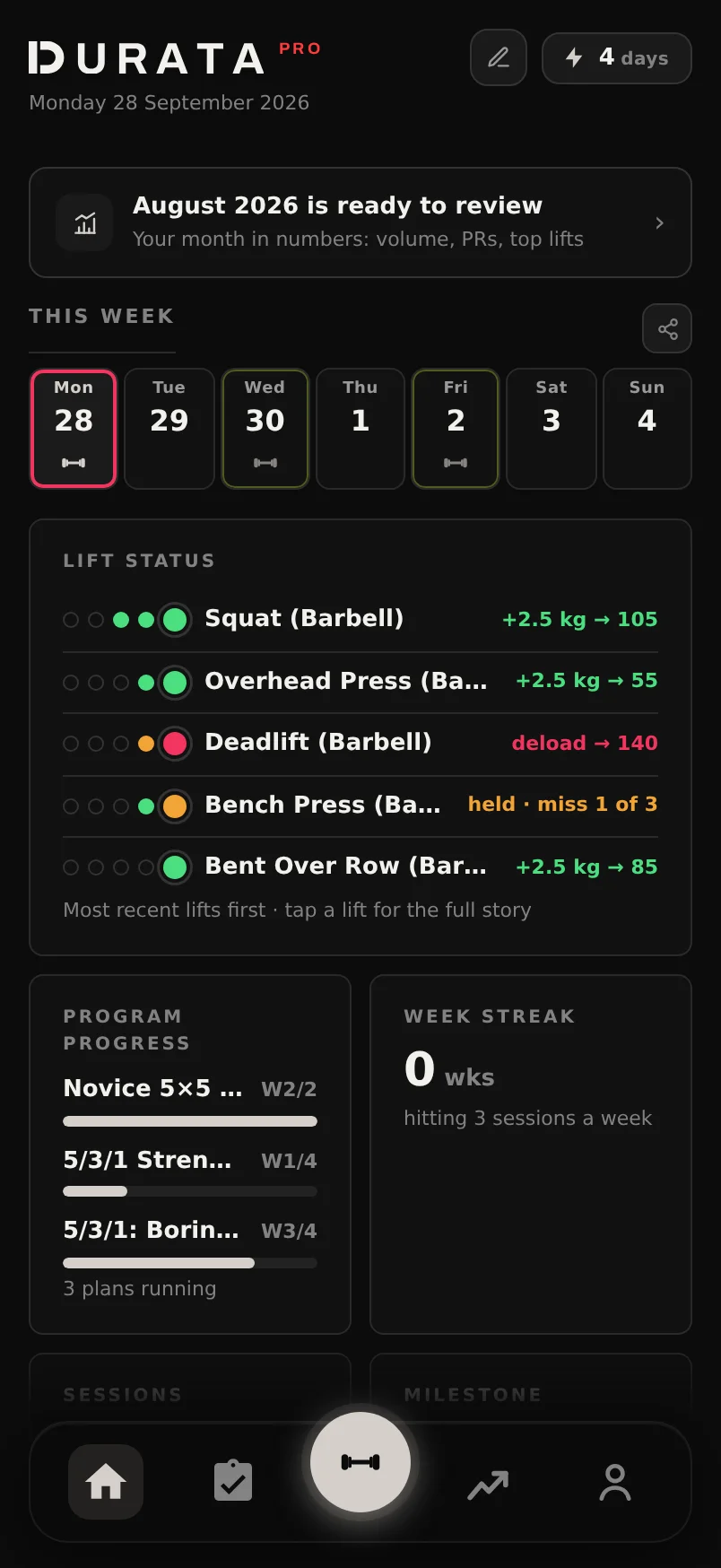
Home is a board of widgets: small live cards that each answer one question about your training. What's on today, how the week is going, whether the bar is actually moving. Widgets appear as your data builds up, and you can move, resize, remove or swap any of them.
This page goes through them one at a time, along with the editor and a few behaviours that aren't obvious. The Getting Started guide gives Home a quick tour; this is the full list.
Last reviewed 2026-09-28 · matches app v1.0.1.98
How the board fills up
A widget with nothing to show doesn't go on the board, so you won't find empty tiles asking to be fed. A new account starts small, and widgets turn up on their own as the data arrives. Log your first session and Last Workout and the charts appear. Log cardio and Cardio joins. Connect a health app and Sleep and Nutrition follow. Train for about a month and Recovery has enough history to say anything useful. This only applies to widgets you haven't made a decision about. Remove one yourself and it stays gone until you add it back.
On day one there's no board yet. A First Session hero leads the screen instead, with Start Your First Workout, which drops you into the exercise picker, and Browse Programs, which opens the catalog of 50 built-in programs. Below it are two chart previews drawn in outline, each labelled 'After 1 session'. Log one workout or finish an import and the hero goes away. The real board starts there.
One more thing sits above the board and isn't a widget, so Customize Home never touches it: a review hint. Once a calendar month ends, a small card offers to open that month's numbers the moment there's something you haven't seen. Through January it does the same for the year that just closed, naming it by year rather than month and adding your session count to the numbers on offer. Tap it and it opens the full report; it marks itself read and won't ask again until the next period closes.
Widgets come in sizes, and the size changes what you get, not just how much room it takes up. Most have a compact version built around one number and a larger version that does more with the space. A small Bodyweight is your weight and a trend arrow; a bigger one is the chart. A small Lift Status abbreviates the lift names and shows their dot trails; the bigger one spells out each lift's verdict in full. A bigger size only adds detail, it never changes the numbers. Nutrition reports the same seven-day averages at every size and spends the extra room on a thirty-day chart. On a phone the board runs two columns wide. Give the app a wider window, on a tablet or a desktop browser, and it reflows into more columns with every widget keeping its size and its place in the order.
Customize Home: edit the board in place
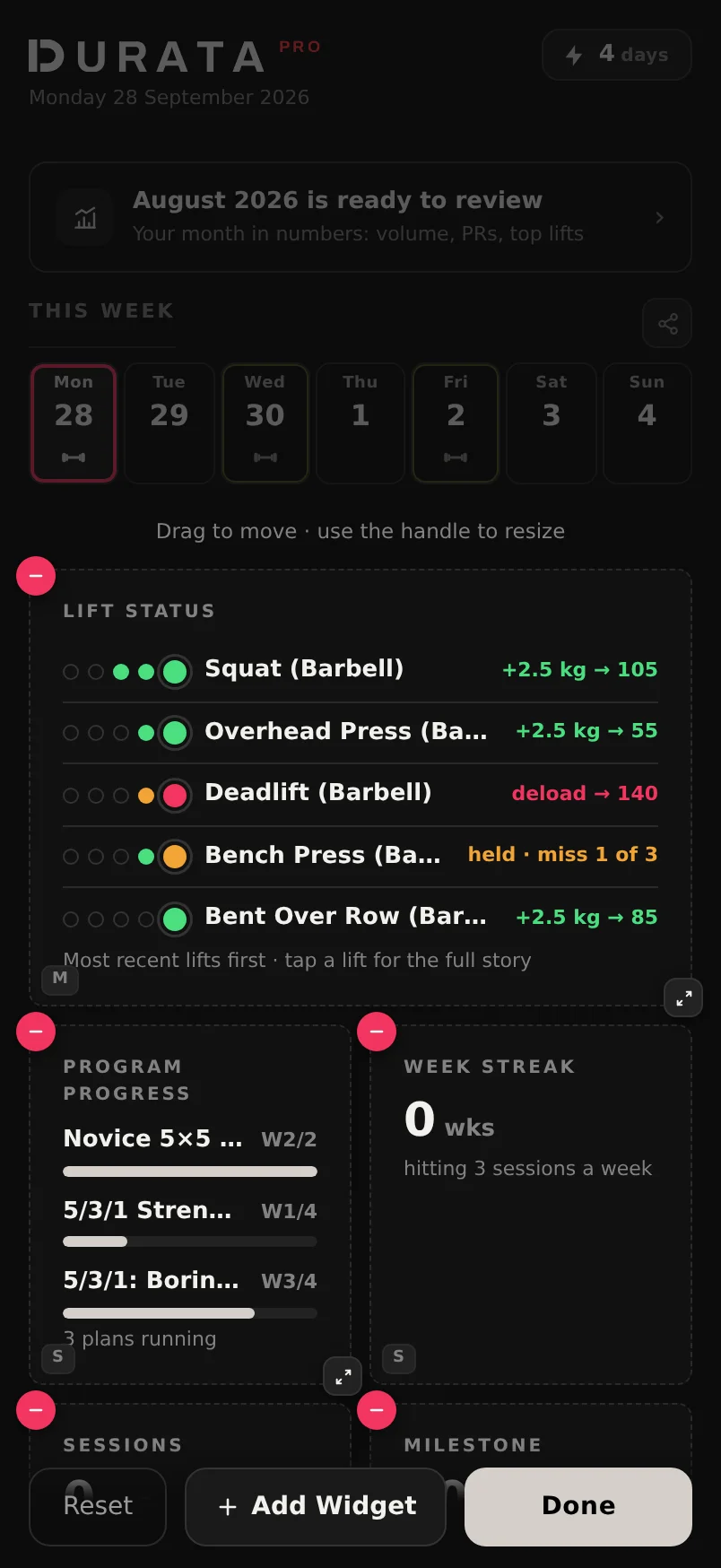
Tap the pencil icon at the top of Home, beside your streak, and the board itself turns into the editor. Widgets stay live while you work on them, showing your real numbers, so the chart you're deciding whether to keep is the actual chart rather than a grey rectangle standing in for it.
In edit mode each widget picks up controls: a − badge to remove it, a corner handle that cycles through its sizes, and the card itself as a drag surface. The body redraws as you cycle the sizes, so you can see what each one gives you. Press and hold a card to lift it, then drop it anywhere; the rest of the board flows around it and closes the gap.
Add Widget rides in the bar at the bottom of the screen, next to Reset and Done, so it's always in reach without a scroll down a full board. It opens the gallery of everything not currently on your board, each with a one-line description. Widgets whose data hasn't arrived yet are dimmed, and each says what it's waiting for: 'Appears after about a month of training', 'Appears with two progress photos far enough apart'. Adding One Lift asks which exercise and which metric you want, and adding Goal asks which goal; both can go on the board as many times as you like, and the picker marks the ones already there. Add one and the board scrolls it into view. A widget you removed earlier comes back exactly as you had it, same size and same settings.
Done saves. The layout syncs to your account and follows you across devices, and Reset puts the default board back if an experiment went badly.
- Tap the pencil icon at the top of Home, beside your streak.
- Remove a widget with its − badge. Resize with the corner handle: sizes cycle, and the widget redraws live at each one.
- Press and hold any widget to lift it, then drag. The board reflows around wherever you drop it.
- Tap Add Widget in the bar at the bottom of the screen to browse everything not on your board. Dimmed entries tell you what data will unlock them.
- Tap Done to save. The layout syncs to your account.
What each widget shows
This week. Sessions counts the week's completed sessions against planned. Week Volume totals the week's working weight. Sets by Muscle paints the week's working sets onto a body map. PRs This Week lists the records you set, and Cardio tracks the week's cardio minutes. Above the board, the This Week strip marks the seven days themselves: trained, planned, and today. A program scheduled to start on a later date puts nothing on it, or in Up Next, until that date arrives.
Your program. Week Plan draws the block itself, one row per program week and seven cells per row, with each training day filled in that session's dominant muscle colour, so a push/pull/legs split reads as three colours repeating. The week you're on is marked, and a deload week is tinted in the accent colour rather than by what it trains. Tap any row to open the planner on that week. At its larger size it adds a colour legend and a footer naming the week you're on and how many sessions it holds. A plan that runs as a rotation — sessions in a fixed order rather than on fixed weekdays — has no weekday grid to draw, so the widget lists that week's sessions in run order instead, ticking off what you've logged and marking what's next; tap it to reorder the rotation rather than to open a week. Up Next is today's planned session, ready to preview or start, and it's covered in detail in Getting Started. Come back to a plan after two weeks away and Up Next leads with a Welcome Back row instead: Ease Back In lowers the working weights and training maxes by a percentage you pick, and on a percentage-based plan also offers to restart or repeat a week, while Carry On leaves everything exactly as it was. Once you've chosen, the row says what it changed and offers Undo until your next logged session. Program Progress names your active program and places you in it: week N of M, with how many of the sessions due so far you've logged, and at its larger size this week's count too. A session only falls due once its day is over, so it never reads as missed before you've had the chance to train. Lift Status is the progression engine's scoreboard. It lists your program's lifts with their latest verdict, whether that's moved up, held, deloaded or training max raised, plus a trail of dots for the engine's recent calls, green for up and red for a miss or a deload — leading with whichever lifts you judged most recently, newest session first, rather than a fixed list frozen on program order, so a four-day split follows you across all four days instead of stalling on the first two. Its largest size, built for a wider screen, holds twelve rows instead of six. Tap a lift for the full story, which is the same why-sheet the logger shows, with this program's rule and the sets that triggered the call. Last Workout is your most recent session's top sets against the one before it, with a chip for any record you broke — weight, estimated 1RM or volume, not just the heaviest set in the room. A session that was only cardio gets cardio's numbers instead of an empty weight total: the minutes you actually trained, the distance if you logged one, and the sets.
The long arc. Streak counts days, using the rest-day rules the streak chip explains. Week Streak counts consecutive weeks where you hit your planned sessions. Milestone counts down to your next round number, like '54 sessions to #100'. Month Calendar comes in two sizes: M shows your last two weeks, Monday-aligned, and L draws the full calendar month. A day you trained is a solid green disc with the date inside it, and today wears the same red ring the This Week strip gives it, trained or not. The footer counts the range's sessions and PR days, plus how many planned sessions are left this week. There's no month-long target, because a plan only looks a week ahead. On This Day appears at most a couple of times a month, and only when there's something worth looking back at: a session from a year or more ago on lifts that have clearly improved since, or a lifetime milestone. It sits directly under Last Workout, near the top of the board, because a card that rare is no use parked at the bottom where you'd never scroll to it. Move it in Customize Home and it'll come back where you put it.
You, rather than your training. Bodyweight, Sleep and Nutrition (once a health app or your own logs feed them), Training Load and Recovery for the fatigue picture, a Goal widget for any goal you haven't archived, and Photo Pair, which puts your newest progress photo next to one from a few months earlier, both dated, with the gap between them. Photo Pair shows your photos unblurred, so adding the widget is how you opt in to seeing them there.
Goal is one goal in one cell, and it says the same thing the Goals panel says, because it reads the same forecast. At its larger size it leads with when the goal lands rather than the percentage, with your current figure against the target underneath, the ahead-or-behind chip if you gave the goal a date, and the trend chart with its projection dashed on the end. A habit shows its run of weeks instead: a bar per period, hit or missed, with the streak. Small keeps the ring and one line. When there is no credible projection the cell prints how far you have left rather than a date it does not believe, and a goal you have reached turns gold with the day you reached it. Pinning a goal puts one on the board by itself; the picker is how everything else gets there.
Food and water. Nutrition is the summary card: the week's average calories and macros, your average water, and a calorie chart. At the largest size the chart stretches to thirty days and adds your bodyweight line over the calorie bars, which is the comparison worth having when you want to know how your intake and your weight line up. Water shows today's figure as your health app reported it, with your seven-day average underneath. It appears once there's water to show and drops off when there isn't, so it never sits there printing a zero. Today's Fuel appears once you have set a calorie or protein target on the Nutrition panel: what you have eaten today, bold, against the day's target, with the protein target under it, and the same line rides at the foot of Up Next as Fuel Today. Fuel vs Training compares your average calories on days you trained against days you didn't over the last thirty days, counting any day with a workout or a cardio session as a training day. Protein per kg divides your recent protein by your latest weigh-in, which is how most lifters compare it, with a fortnight's sparkline underneath.
Gyms appears on its own once your recent training spans more than one venue. It splits the last few weeks' sessions by gym, carries the same gym switcher as the rest of the app, and tapping a gym's row opens your History already filtered to that venue.
One Lift is the free slot: one exercise on one metric, either estimated 1RM, top set or session volume. Add as many One Lift widgets as you like.
Pin bench, squat and deadlift as three One Lift widgets for a big-three board.
Starring a goal in Goals puts a small Goal widget on your board, and that star is capped at three. The Goal row in Add Widget is not: use it for a fourth goal, or for a larger cell than the star gives you.
Tapping a Goal cell opens the Goals panel, where the same forecast has room to explain itself.
A Goal widget you added yourself stays put when you unstar the goal — it is your board, not a mirror of the star. Archiving the goal is what takes the cell away.
Week Plan's rows are tappable. Tap the row for week 3 and the planner opens on week 3, not on today. Tapping the header, the legend or the footer opens the week you're actually on.
In Month Calendar, tapping a filled day opens that day's workout in your history, and tapping today previews or starts what's planned.
Tap the Recovery widget for the full fatigue breakdown on Progress → Workload, which shows the numbers behind the score.
Recovery is a Pro widget: on a free account it keeps its title and load line and blurs the score behind one Unlock with Pro pill, and only once it has a month of history to score.
Lift Status only speaks for lifts that a program's progression rule judges. Training outside a program shows no verdicts, because no rule ran on it.
A lift held because the session was short says which: "held · 2 of 3 sets". Reps at the top of the range still add no weight when a set never got logged, so the verdict names the shortfall instead of reading as on track.
Water has one size only, and it comes and goes on its own. If nothing has reported water in the last week the card steps off the board, and it's back the moment something does.
Water's seven-day average only counts days that actually reported water. A day your health app tracked food but no water isn't averaged in as a zero.
Common questions
Why isn't the widget I want on my board?
It's in the Add Widget gallery. If it's dimmed there, its data hasn't arrived yet, and the entry says what it's waiting for: about a month of training for Recovery, two progress photos far enough apart for Photo Pair. As soon as the condition is met the entry lights up and you can add it.
Do my layout changes sync across devices?
Yes. Tapping Done saves the layout to your account, and it follows you to any device you sign into. Reset restores the default board at any time.
Are my Photo Pair photos shown to anyone?
No. Progress photos stay on your device, and the widget only shows them on your own Home screen. They are shown unblurred, so adding the widget is the choice to have them on the board, and removing it takes them off straight away.
Can I set a calorie or protein target on these widgets?
Not on the widget. Targets are set on the Nutrition panel, as dated phases with a calorie and macro target each, and once one is set the Today's Fuel widget and the Fuel Today line under Up Next read today's intake against it. Durata still reads the intake itself from whichever app you keep your diary in. Water has no target: Durata shows what your health app reported and leaves the target to the app you set it in.
Can I have the same widget twice?
One Lift and Goal, yes, and that's rather the point of them: each One Lift tracks its own exercise and metric, and each Goal watches one goal. Add as many of either as you have room for. The rest are one per board, since two copies would show the same numbers.
Where does On This Day show up, and could I scroll straight past it?
It sits just below Last Workout, near the top of the board, so that you don't. It only exists on qualifying days: an anniversary session on lifts that have improved since, or a lifetime milestone. That works out to a couple of appearances a month at most, which is why it's placed high rather than at the end. Once you've moved it in Customize Home, it comes back wherever you put it.
Is this the same as the widgets on my phone's home screen?
No. iOS and Android also offer widgets — Up Next, This Week, Goal, Streak and more — that sit on your phone's own home screen or lock screen, outside Durata entirely. This page is about the board inside the app's Home tab. The two read the same underlying numbers, but they're arranged separately: resizing or removing a widget here doesn't touch what's on your phone's home screen, and adding a home-screen widget doesn't add anything here.
Put it into practice
Durata is free to use — 50 proven programs, automatic progression, rest timers and PR tracking, all on your phone.