


Build your own program
Durata ships 84 ready-made programs, but you can also make a plan of your own: your split, your sessions, your sets and reps, with a progression rule on each lift so the app works out the next weight, as it does for a built-in program.
Build Your Week makes the plan in three steps. This guide walks through them, then filling in and changing the sessions, and turning on progression.
Last reviewed 2026-11-21 · matches app v1.2
Step 1: name, days and goal
Open Training, tap + in the header and choose Plan ("A week of sessions that repeats and progresses"). That opens Build Your Week. On a wide screen the three steps sit side by side in one New Plan workspace.
Name your plan, pick How many days a week (2 to 6) and What is the goal: Strength, Hypertrophy, Powerbuilding, Fat Loss or Powerlifting. If you leave the name blank, the plan takes the name of the split you pick, or My Plan. Tap Next.
Step 2: a session for each day
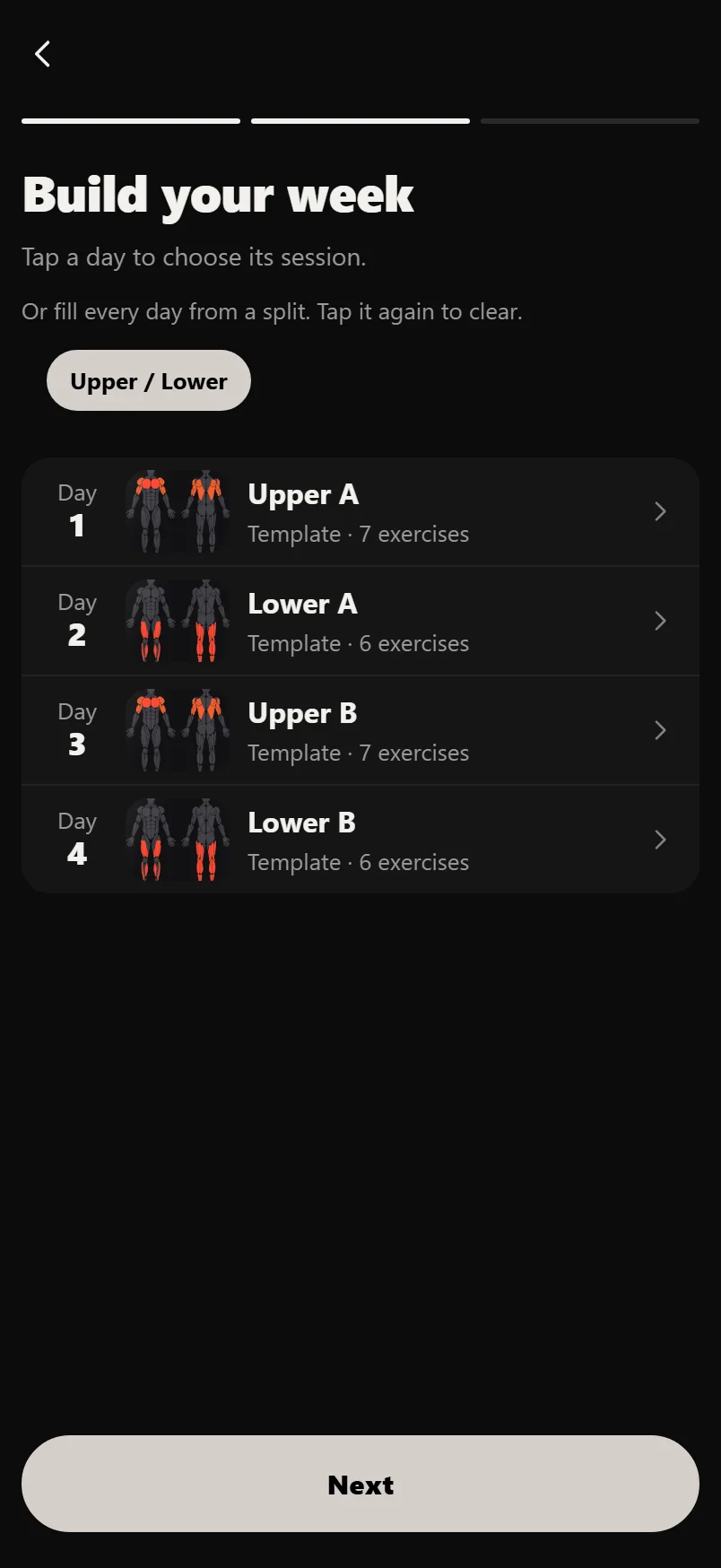
Build your week lists one row per training day. Tap a day to choose its session, or tap a split above the list, such as Push / Pull / Legs or Upper / Lower, to fill every day at once. Tap the split again to clear it. Any day can still be changed afterwards.
Each day offers three tabs. Templates are session outlines, such as Full Body, Upper, Push or Glutes, where you choose the exercises. Locker holds the sessions you already have. Durata holds ready-made Durata Sessions, written by the Durata team and ready to train.
Pick the same Locker session for two days and the second shows Linked to Day 1, so the two stay one session. A template used on more than one day gets A, B and C added to its name. When every day has a session, tap Next.
Sessions you already saved don't need rebuilding: choose them from the Locker tab.
Step 3: days, length and progression
Which days? sets how the plan is scheduled. With Train on Set Days on, each session sits on the weekdays you pick. Turn it off and the sessions run in order instead, the next one after the last you logged, which suits training that doesn't land on the same days every week.
How long is the block? sets the Weeks, from 1 to 16 (the week you built fills every week), and Repeats, which decides whether the plan starts again from week 1 or is complete when it ends.
Turn on progression? switches on Progressive Overload: fixed reps add weight every session, and rep ranges add reps, then weight. It is part of Pro. On a free account the row shows a PRO badge and the switch stays off.
Tap Create Plan and the plan opens in the planner. Days built from a template show how many of their exercises you have chosen, so you can finish them there.
Free accounts: four sessions
A free account builds up to four sessions of its own, and Build Your Week shows how many you have used. Each template day uses one. A session you built that you pick from the Locker moves into the plan rather than being copied, so it does not use another. On Pro the plan gets its own copy and the original stays in your Locker.
Durata Sessions are free and don't count towards the four. On a free account they run as written: you can swap a lift for one that works the same way, or choose Make It Yours to turn the session into one of your own, which then counts like any other.
Filling in and editing sessions
Tap a session in the planner and choose Edit to open the session editor. Add exercises from the full library: search by name, and every exercise brings its how-to video and form notes. For each one, set the number of sets and the target reps, as you would during a workout. Order them how you'll perform them: compounds first, accessories after.
As you build, the planner's Sets per Muscle shows how many hard sets each muscle gets in the week, so a push-heavy week with no pulling shows up straight away. To add a session you already have to a plan later, tap Add Session in the planner and choose From My Sessions.
Tap a set's type badge to open the set sheet. A strip across the top steps through every set on that exercise, copies one, or adds and removes sets, without closing it.
Progression rules on each lift
Each lift on a plan can have its own rule, and Durata then works out the next target every session. Add Weight Every Session is linear progression, the classic beginner driver. Reps, then Weight is double progression: add reps within a range first, then add weight and drop back to the bottom of the range. % of a Training Max runs the lift off a percentage of a training max. I'll Pick the Weight leaves it to you.
The rule is a chip under the lift's name in the session editor. Durata reads the sets you've entered and suggests a rule to match: a rep range like 8-12 suggests Reps, then Weight, and fixed reps like 3×5 suggest Add Weight Every Session. A suggestion shows as a dashed chip; tap it to turn it on. A solid chip is a rule that is running. A plain Add Progression chip means nothing in the sets suggests one; tap it to choose.
Tap a running rule's chip to change it. The picker offers increments that suit the lift's equipment, says in one sentence what will happen, and has Back off if I stall, where you choose how many misses in a row bring the weight down and by how much.
Setting a rule is part of Pro. A rule that is already running keeps running on a free account.
Lifts no rule can move, like cardio, timed holds and reps-only bodyweight lifts, show no chip.
Running and changing it
When the plan is ready, start it from its program page (About This Program in the planner, or its row in the Locker) with Start Plan. It becomes your active plan and shows on Home and the Workout tab like any program from Browse. Open each day's session, log your sets, and Durata moves the weights on by the rules you set.
Nothing is locked in. In the planner, hold and drag a session to move it to another day, use Add Session and Copy Week, and change weeks, deloads and the rest from Plan Settings, including Train on Set Days. Tap a session and choose Edit to change it. Your logged history is kept whatever you change.
Common questions
How do I create a custom plan in Durata?
Open Training, tap + and choose Plan. Build Your Week asks for a name, how many days a week and the goal, then a session for each day from Templates, your Locker or Durata Sessions, then how the plan runs. Tap Create Plan and it opens in the planner.
Can I turn sessions I already saved into a plan?
Yes. In Build Your Week, choose each day's session from the Locker tab. On a free account a session you built moves into the plan; on Pro the plan gets its own copy.
Can I set automatic progression on my own plan?
Yes, with Pro. Turn on Progressive Overload in Build Your Week's last step, or set a rule on each lift's chip in the session editor: Add Weight Every Session, Reps, then Weight, or % of a Training Max.
How many sessions can I build on a free account?
Four of your own. Build Your Week counts them as you go. Durata Sessions don't count, and a session moved in from your Locker doesn't count twice.
Does my plan need to run on fixed weekdays?
No. Turn off Train on Set Days in the last step, or later in the planner's Plan Settings, and the sessions run in order, the next one after the last you logged.
Can I edit my plan after I've started it?
Any time. Open it in the planner to move sessions, add sessions, copy a week and change Plan Settings. Tap a session and choose Edit to change what is in it. Your logged history is kept.
Put it into practice
Durata is free to use — 84 proven programs, automatic progression, rest timers and PR tracking, all on your phone.