


Browse and program pages
Browse is the middle tab on the Training screen, between your Locker and Exercises. It holds every ready-made plan, 84 programs from 5x5 and 5/3/1 to body part splits, home dumbbell plans and fat loss blocks, each with its progression already written in. It also holds the ready-made Durata Sessions, single workouts you can run any day.
This guide covers finding a plan or session and reading a program's page. Starting one, with training maxes and a start date, has its own guide.
Last reviewed 2026-11-21 · matches app v1.2
Plans, sessions and the shelves
The switch at the top picks Plans or Sessions. Plans open on five goal shelves: Strength, Hypertrophy, Powerbuilding, Powerlifting and Fat Loss. Each shelf is a row of program covers you swipe sideways. A program's shelf comes from what it actually prescribes, not from its name.
The shelf nearest the middle of the screen is lit, with its name in white, and the rest are dimmed. As you scroll, the lit shelf follows. Tapping a cover on a dimmed shelf brings that shelf to the middle.
Under each cover are the days a week, the time a session takes, the level and a bookmark. Tap the bookmark to save the program without opening it: it goes under Saved in your Locker until you start it. A program added in the latest release shows New after its level.
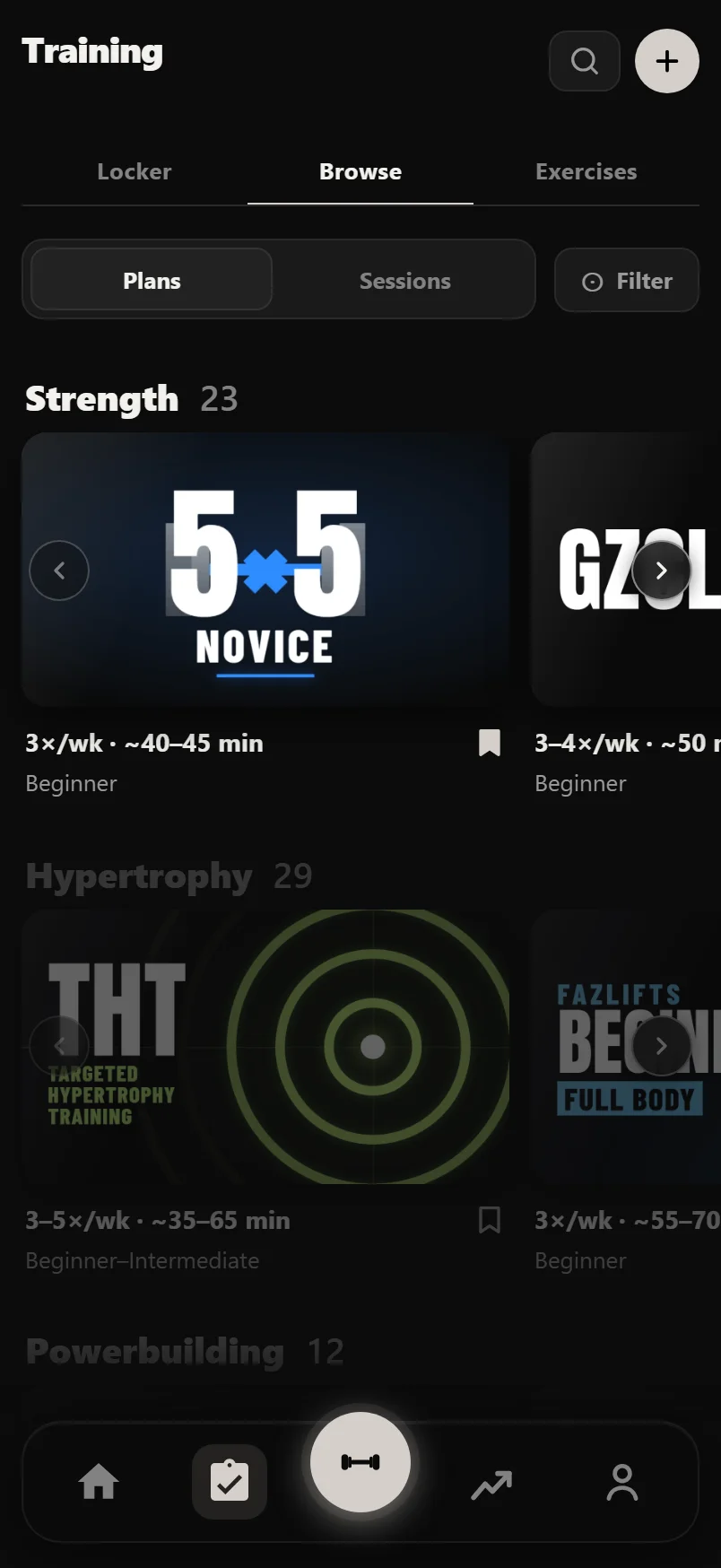
Search and filter
The search icon in the header opens a search field. It matches program names, the names people commonly use for them, and coach and author names, so "stronglifts" or a coach's name find the right programs. Cancel closes it.
Filter opens Filter Plans. Group by, at the top, regroups the shelves: Goal, Coaches (a shelf for each coach who shares their programs here, then more classic programs, then the Durata Originals), Days, Level or Equipment. Show only narrows them by Days a week, Level, Equipment (from a full gym to kettlebells, worked out from what each program's exercises need) and Goal. Order sorts each shelf: Recommended, Highest rated, Shortest session or A–Z.
The button at the foot says how many plans you will see, such as Show 12 Plans, and Reset clears everything. Once a filter is on, the Filter button shows how many are set. With Sessions picked, Filter Sessions groups and narrows the Durata Sessions by type, length, body part and equipment instead.
Highest rated uses a weighted average, so one five-star vote does not outrank a program with many ratings. You can only rate a program you have started.
The quick look
Tap any cover and a drawer rises with the cover in it: the shelf and level with the bookmark beside them, then the days a week, the session time, the equipment and the rating, then a short description.
At the foot are Start Program and View Program. Start Program starts it straight away (see Starting a program). View Program opens the full program page. A program that comes in more than one version, such as a choice of days a week, has only View Program here, because you pick the version on its page. If you already run the program, Start Program becomes Open in Locker; if you finished it, Start Again.
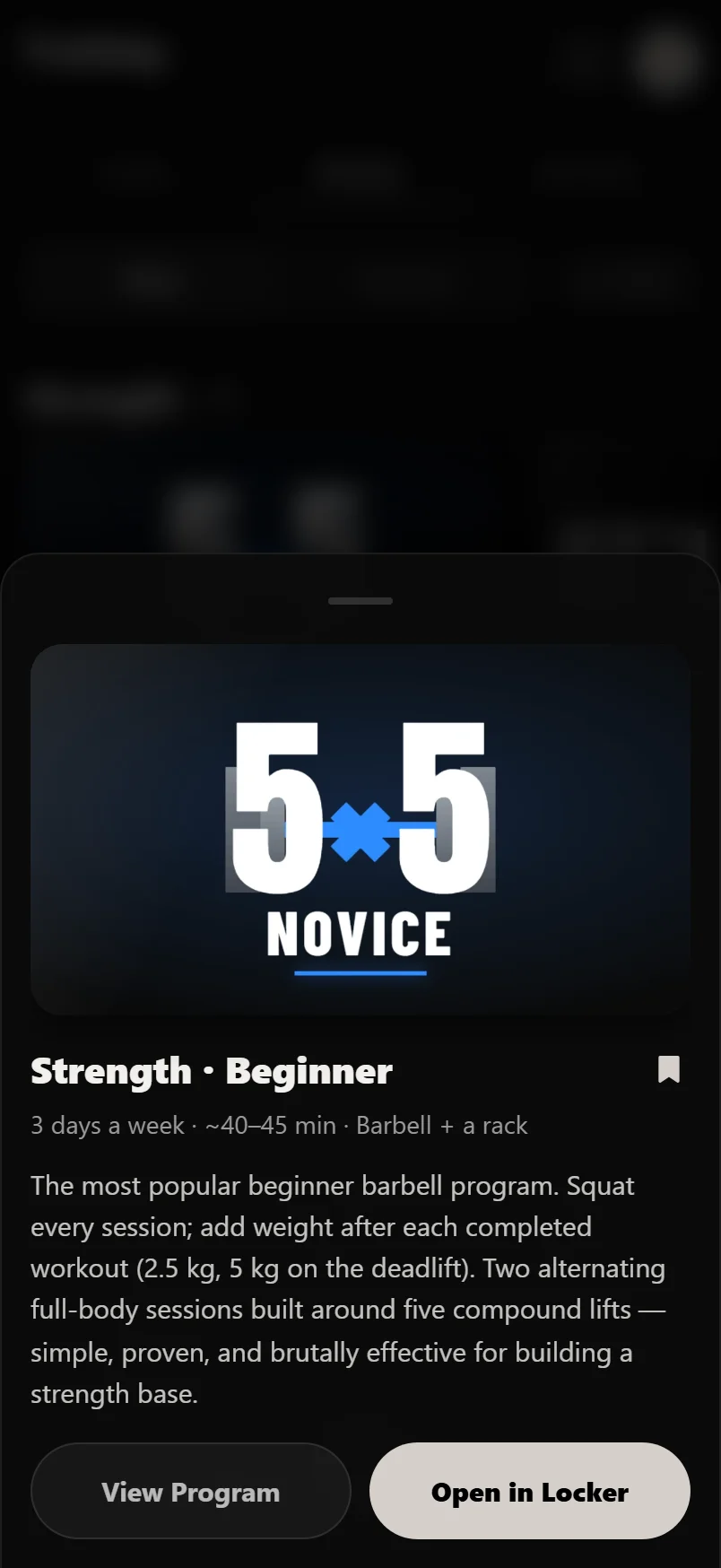
The program page
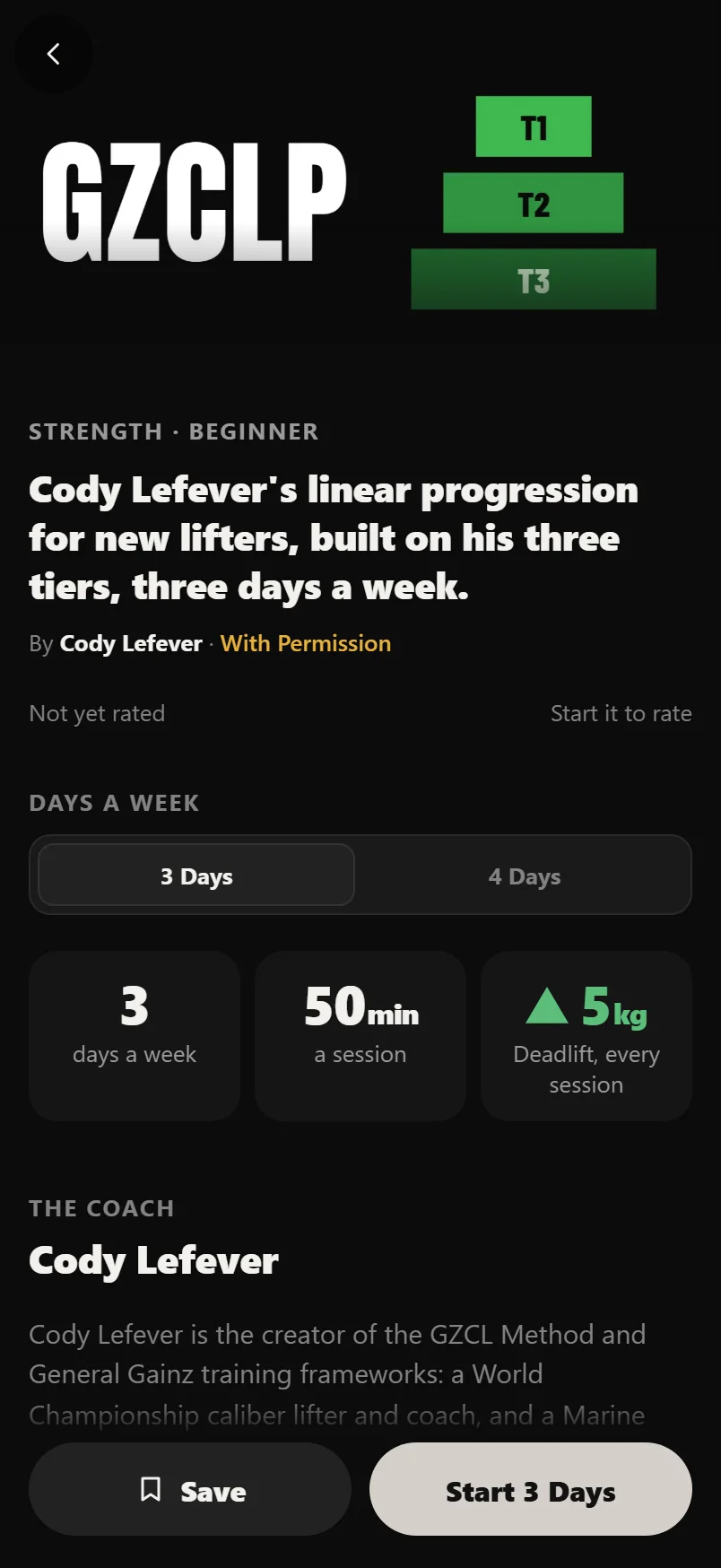
The program page is one page you scroll, top to bottom. It opens with the cover, the shelf and level, a one-line pitch, who wrote the program and its rating, then the days a week and minutes a session. A program checked against the author's own material shows From Original Source, some are Durata Original, and others are shared with a coach's permission or approval, named and linked to their work.
Your week is a Monday to Sunday strip, one bar per training day; a program that runs in order shows Your order instead. Tap a day to see its sessions with every lift's sets and reps, and real weights where Durata can work them out from your history. A program longer than a week has a button for each week.
The whole block gives the start and finish dates and a calendar of every week, with deload weeks marked. What it builds shows front and back body maps shaded by how much each muscle is worked, and hard sets a week for each muscle. How it works explains the progression rules in plain words. A coach's program has a section about the coach, and Not quite right, at the end, lists similar programs from the same shelf.
Where it takes you
Where it takes you charts the program's main lifts forward, worked out by the same progression code that will set your weights if you start it. Drag across the chart to read any week. It assumes every session goes to plan, so read it as the program's shape rather than a promise.
Under the chart is each lift's starting weight or training max, taken from your own logged history. The minus and plus buttons move the chart so you can see a different start. They change nothing: the real starting weights are set when you start the program. A lift you have never logged has no starting figure, so the chart leaves it out.
The buttons at the foot
The foot of the page stays in place as you scroll. A program you have not saved shows Save and Start Program, or Start and the number of days for a program with a choice of days. Once it is running, Save becomes Saved and the main button becomes Open in Locker. Signed out, it reads Sign In to Use.
Your own plans use the same page. A plan not started shows Start Plan, a paused one Resume, and a finished one Start Again.
A program from Browse that you have not started is read-only. Its sessions open with Close only until you start the program.
Common questions
Where did Discover go?
It is now Browse, the middle tab on the Training screen, between Locker and Exercises. It holds the ready-made plans and, under Sessions, the ready-made Durata Sessions.
How do I find programs by a particular coach?
Type the coach's name in search, or open Filter and set Group by to Coaches, which gives each coach a shelf of their programs.
How do I save a program without starting it?
Tap the bookmark under its cover in Browse, or Save at the foot of its program page. It goes under Saved in your Locker until you start it.
Can I see what weights a program would give me before I start?
Yes. Where it takes you, on the program page, lists each main lift's starting weight or training max from your logged history and charts where it would go if every session goes to plan.
Can I change a program from Browse before I start it?
No. Until you start it, its sessions are read-only. Starting it copies the program into your Locker as your own plan, which you can then change.
Put it into practice
Durata is free to use — 84 proven programs, automatic progression, rest timers and PR tracking, all on your phone.